
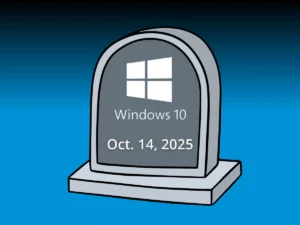
Windows 10 support ended on October 14, 2025. After that date, Windows 10 devices do not receive normal ongoing security updates unless they are enrolled in Microsoft’s Extended Security Updates (ESU) program or upgraded to a supported Windows version.
For many organizations, the hard part is not the upgrade itself. The hard part is managing the aftershock: mixed hardware fleets, a few business critical apps that do not behave, and users who will keep work moving with whatever tools are available. That is how risk grows quietly.
A practical response does two things at once:
reduce exposure quickly across the majority of endpoints, and
keep true blockers contained, documented, and time boxed
End of support does not mean Windows 10 stops running. It means Windows 10 stops receiving the normal stream of fixes that reduce your exposure to newly discovered issues. Over time, that increases the likelihood that a known weakness becomes an easy entry point.
There are also second order effects that tend to show up later:
Vendors may stop certifying new versions of software on Windows 10.
Security and compliance reviews get harder because “unsupported OS” is easy to flag.
Incident response becomes more complex because you are defending older systems while also modernizing.
The biggest operational risk is usually exception sprawl. One team keeps a Windows 10 device for a legacy app. Another keeps one for a specialty printer. A third keeps one because “it still works.” Six months later, you have a shadow fleet.
Every Windows 10 exception needs an owner, a business reason, compensating controls, and an expiration date.
If any of those are missing, the exception is not temporary. It is unmanaged risk.
Many organizations start by tightening visibility and enforcement so exceptions can be measured and managed, not guessed. That work often aligns with ongoing disciplines like IT support and network management from Infradapt.
End of support raises risk gradually, not overnight.
The main danger is uncontrolled exceptions that multiply.
Require owner, reason, controls, and an expiration date for every Windows 10 holdout.
Better inventory and enforcement reduce guesswork and rework.
Microsoft’s Extended Security Updates (ESU) is a paid program that lets enrolled Windows 10 PCs continue receiving critical and important security updates after the support end date.
That sounds simple, but ESU is often misunderstood. ESU helps with one specific problem: reducing exposure from missing OS security updates on devices you cannot migrate yet. ESU does not turn Windows 10 back into a fully supported platform with the same expectations you had before October 2025.
Hardware aging and reliability problems
Driver and firmware gaps
Legacy application modernization
Weak endpoint management practices
Loose access controls and over-permissioned users
This is a common trap. ESU is meant for limited scope use, not as a default setting for an entire fleet. Broad ESU use tends to create three problems:
Costs expand because scope is not controlled
IT postpones hard decisions that still arrive later
Exceptions become the norm, which weakens standards
Enroll only devices with a documented business blocker.
Place ESU devices in a clearly labeled category in your asset inventory.
Add compensating controls: segmentation, limited access, stricter monitoring.
Remove unnecessary software from ESU endpoints, especially internet facing tools where feasible.
Set a removal date and review it monthly.
If ESU is part of your plan, align it with the broader security posture and documentation you already need for governance and liability management. Resources like cybersecurity liability protection from Infradapt map well to this style of control-first decision making.
ESU extends security updates for enrolled Windows 10 devices.
ESU does not fix hardware age, app debt, or management gaps.
ESU should be limited, documented, and reviewed on a schedule.
Compensating controls matter as much as the ESU enrollment itself.
Most Windows migrations go sideways for one reason: the organization does not have a complete view of what is in use and what it supports. Readiness is not a technical checkbox. It is operational clarity.
A useful inventory answers questions leadership actually cares about:
Who uses the device and for what function
Which workflow breaks if it fails
Whether it is managed and protected to your baseline
The recommended path: upgrade, replace, retire, or temporary ESU
If your inventory is just a spreadsheet of serial numbers, it will not support decisions. Your inventory needs ownership and purpose.
Compatibility testing often fails because teams test a single app launch and call it done. Real work depends on the edges:
plugins and add-ins
printers and scanners
file paths and network shares
authentication and conditional access
specialized peripherals
A simple approach is to define the top workflows that must not break, then map the dependencies for each workflow. That creates a realistic test plan.
Even when a device can technically upgrade, it may not be a good candidate. Performance, battery health, Wi-Fi stability, and driver maturity all affect user experience.
The market data suggests many organizations have been refreshing fleets to meet newer requirements. Gartner reported worldwide PC shipments were more than 63 million units in Q2 2025, a 4.4% increase year over year. (Gartner, “Worldwide PC Shipments Increased 4.4% in Second Quarter of 2025,” 2025.)
That does not mean you must buy devices immediately. It does mean refresh demand has been active, and planning beats scrambling.
Example: a mid-sized legal firm with a hidden Windows 10 fleet
Example: A legal firm believes it has 120 Windows endpoints. The first inventory pass finds 35 additional devices: conference room PCs, a handful of shared reception machines, and several “loaners” that never received standard security tooling.
What worked:
Categorize devices by function and criticality, not by department.
Identify unmanaged endpoints and bring them into management first.
Run workflow tests with power users for document management, printing, and e-signature tools.
Create a short exception list for devices tied to one legacy scanning workflow, with an ESU plan and a retirement date.
Outcome:
the firm reduces unknowns early and avoids a last-minute rush where users improvise.
Inventory must connect devices to owners and workflows, not just assets.
Test workflows end to end, including dependencies like printing and plugins.
Hardware readiness includes usability and stability, not only eligibility.
Market refresh cycles are real, so early planning reduces procurement stress.
A Windows migration is easiest to manage when it is treated like a controlled rollout, not a one weekend cutover. Phasing also reduces the risk of shadow IT because users see progress and have a clear path.
Define the baseline first:
standard Windows build and core configurations
endpoint protection and patching expectations
device encryption requirements
access policies that match your risk tolerance
support and rollback process
If the baseline is unclear, every migrated endpoint becomes a one-off.
Many organizations bundle this work into a repeatable operating model for endpoint lifecycle management, which overlaps with managed IT services overview from Infradapt.
Roll out in rings to reduce surprises. Start with IT and a few technical users, then power users across departments, then one full department, and finally a broad rollout. The point is to catch issues early and fix them before they affect everyone.
Expect workarounds if upgrades disrupt work. Users usually do not try to bypass controls. They just need to get their job done. If the upgrade process slows them down, shadow IT shows up.
Reduce shadow IT with three moves. Communicate clear timelines by group, protect the workflows that matter most (printing, scanning, sign-in), and provide approved options for file sharing and remote access with easy support during migration windows.
Example outcome. A manufacturer upgraded office devices first, kept only shop-floor stations on Windows 10 under ESU, segmented those stations, limited access to what they needed, and set a vendor deadline for certification. Result: most of the environment became supported quickly while the true blocker stayed contained.
What to focus on next. Frame budgeting as risk and continuity, not just upgrade cost. Invest in refresh for most devices, ESU only for real blockers, controls and monitoring for exceptions, and resilience improvements.
Governance that keeps you on track. Maintain one exception register with owners and expiration dates, and report progress in business terms (critical workflows cleared) instead of only device counts. Validate recovery planning as part of the change.
Windows 10 support ended on October 14, 2025. After end of support, Windows 10 devices generally stop receiving regular security updates, which increases cybersecurity risk and can create compliance and vendor support issues.
Windows 10 Extended Security Updates (ESU) is a paid program that provides security updates for eligible Windows 10 devices after end of support. ESU is best for organizations that need extra time to migrate because of legacy applications, specialized hardware, or operational constraints.
No. ESU mainly provides security updates. It does not fix aging hardware, improve performance, guarantee software compatibility, or replace the need to upgrade to a supported Windows version.
Keep only the necessary devices on Windows 10 under ESU, document the business reason, assign an owner, apply compensating controls (network segmentation, least privilege, monitoring), and set an exit date tied to the app replacement or vendor certification timeline.
Prevent shadow IT by publishing clear migration timelines by team, prioritizing critical workflows (sign-in, printing, scanning, line-of-business apps), and providing approved alternatives for file sharing and remote access with fast support during migration windows.
A phased “ring rollout” is a structured way to deploy a Windows 10 to Windows 11 migration in stages across different user groups. It helps organizations evaluate compatibility, operational impact, and rollout readiness before expanding the deployment to the rest of the business.
